Placing Plants
Position plants on your garden plan, adjust their size, and record important details about each one.

Michael Johnson
Founder & Head Gardener
Michael is the founder of Right Plant Right Place and a passionate gardener with several years of experience designing and maintaining gardens.
Expertise
- Garden design
- Plant selection for challenging conditions
- Sustainable gardening practices
- Shade gardening
After identifying a plant or selecting one from the database, you can place it in your garden to record its location. This creates a visual map of your existing plants—helpful for planning what to add next and keeping track of what you have.
Accessing the plant editor: From the Floor Plan Editor, click “Add your Existing Plants” on any flowerbed or container region.
Adding Plants to Your Garden
There are two ways to add plants:
Method 1: Identify with photos
- Use the Plant Identification feature (see the Plant Identification guide)
- When you select a matched plant, you’ll enter placing mode
Method 2: Search the database
- Click “None of these - Search Database Manually” after identification
- Or use the search function to find plants by name
- Select a plant from the search results
Placing Plants (Desktop vs Mobile)
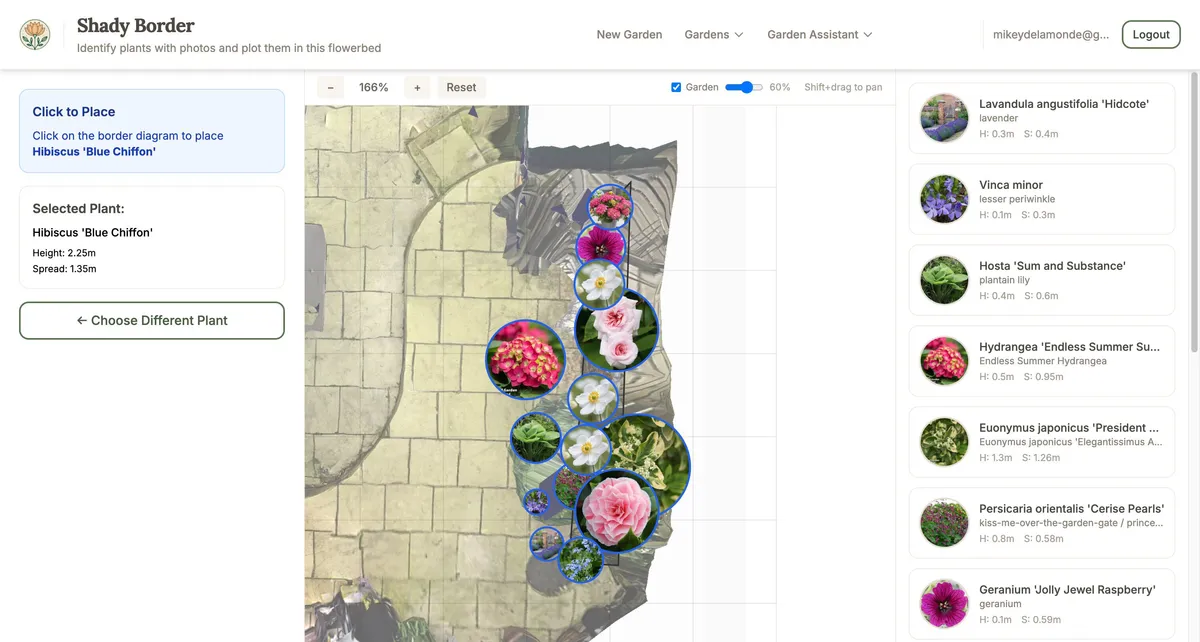
On desktop:
- After selecting a plant, your cursor changes to placing mode
- Click anywhere within your region to place the plant
- A dialog appears to enter additional details (optional)
- Click “Add Plant” to confirm
On mobile:
- After selecting a plant, it’s automatically placed in the centre of the region
- The view zooms in to show the newly placed plant
- You can then drag it to the correct position
Positioning and Resizing Plants
Once a plant is placed, you can adjust its position and size directly on the diagram.
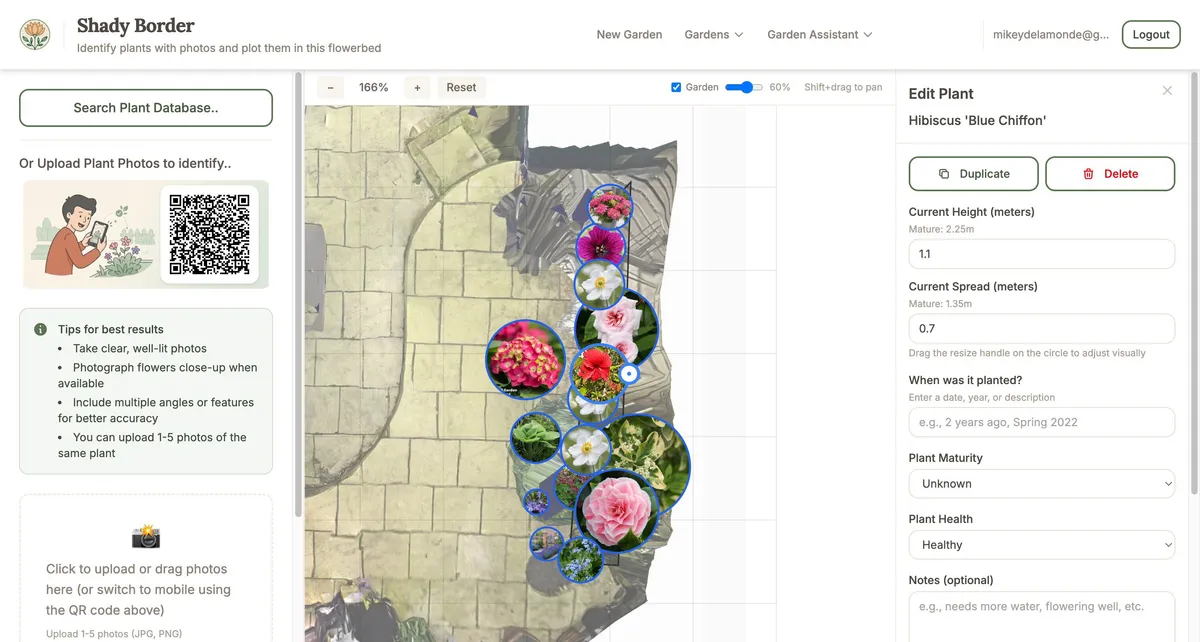
Selecting a plant: Click/tap on any plant circle to select it. Selected plants show a highlight and resize handle.
Moving a plant:
- Click/tap and hold on the plant
- Drag it to the new position
- Release to drop it in place
- Changes are saved automatically
Resizing a plant (adjusting spread):
- Select the plant
- Drag the resize handle (small circle on the edge)
- Pull outward to increase spread, inward to decrease
- The spread value updates as you drag
- Changes are saved automatically
Note: The minimum spread is 0.2 metres—plants cannot be smaller than this.
Recording Plant Information
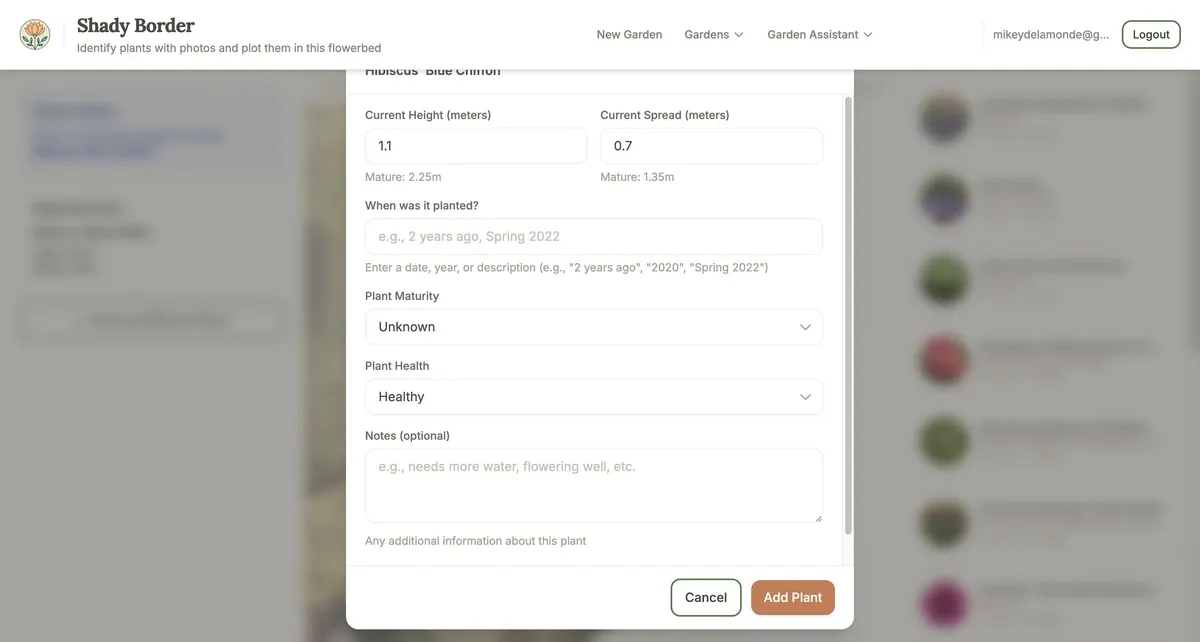
When you place or select a plant, you can view and edit detailed information about it. This helps you keep track of your garden’s history and makes it easier to care for your plants.
Plant details you can record:
| Field | Description |
|---|---|
| Current Height | How tall the plant is now (in metres) |
| Current Spread | How wide the plant is now (in metres) |
| When Planted | Date or description (e.g., “Spring 2022”, “2 years ago”) |
| Plant Maturity | Young, Establishing (1-2 years), Mature, or Unknown |
| Plant Health | Healthy, Struggling, or Unknown |
| Notes | Any additional information |
| Keep Flag | Whether to keep this plant in future plans |
Sun exposure warnings: The system automatically checks if the plant’s light requirements match the location. You’ll see:
- Green alert — light requirements match this location
- Yellow alert — location may not be ideal (too sunny or too shaded)
This helps you understand why certain plants might be struggling—they might simply be in the wrong spot.
Photo options: If you identified the plant with your own photo, you can choose to display either your photo from identification or the generic photo from our plant database.
To edit a plant:
- Click/tap on the plant to select it
- The plant details appear in the sidebar
- Click “Edit” to open the details dialog
- Make your changes and click “Save Changes”
Deleting Plants
To remove a plant from your garden:
- Select the plant by clicking/tapping on it
- Click the delete/trash icon
- Confirm the deletion when prompted
This removes the plant from your garden plan but doesn’t affect the plant database.
Previous: Plant Identification
Next: Planting Designer — Get AI-powered recommendations for new plants that will thrive in your garden.
Ready to plan your garden?
The Right Plant Right Place app can analyse your specific garden conditions and suggest plants that will thrive in your space.
Get Started Free