Plant Identification
Use AI-powered plant identification to photograph and identify existing plants in your garden.

Michael Johnson
Founder & Head Gardener
Michael is the founder of Right Plant Right Place and a passionate gardener with several years of experience designing and maintaining gardens.
Expertise
- Garden design
- Plant selection for challenging conditions
- Sustainable gardening practices
- Shade gardening
The Plant Identification feature uses AI to identify plants from photos. This is particularly useful for documenting existing plants in your garden—especially those mystery plants you inherited when you moved in.
Mobile Friendly: This feature works brilliantly on mobile devices. If you’re on a desktop, scan the QR code to open the page on your phone and take photos directly.
Using the QR Code (Mobile)
When viewing the plant identification screen on a desktop computer, you’ll see a QR code displayed prominently.
How to use the QR code:
- Open the camera app on your phone (or a QR code scanner)
- Point it at the QR code on your computer screen
- Tap the link that appears to open the page on your phone
- You’ll be taken directly to the same garden region, ready to take photos
This makes it easy to walk around your garden with your phone, taking photos of plants you want to identify.
Uploading Plant Photos
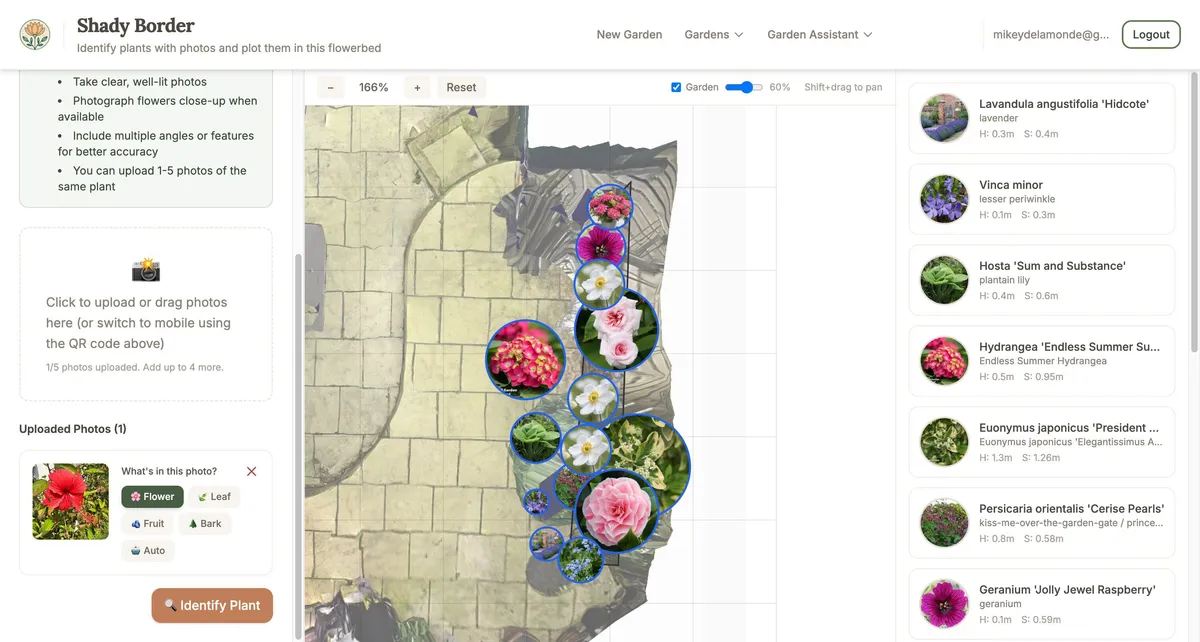
You can upload 1-5 photos of the same plant for identification. Multiple photos from different angles improve accuracy.
How to upload photos:
- On mobile: Tap the upload area to open your camera or photo library
- On desktop: Click to browse for files, or drag and drop photos
Accepted formats: JPG, PNG
Tips for best results:
- Take clear, well-lit photos
- Photograph flowers close-up when available (flowers are easiest to identify)
- Include multiple angles or features for better accuracy
- You can upload 1-5 photos of the same plant
Selecting What’s in Each Photo
For each photo you upload, you can specify what plant part is shown (flower, leaf, etc.). This helps the identification system focus on the right features.
| Plant Part | Best For |
|---|---|
| Flower | Close-up photos of flowers |
| Leaf | Clear photos of leaves |
| Fruit | Photos of fruits or berries |
| Bark | Photos of tree bark or trunk |
| Auto | Let the system automatically detect |
The default is “Flower” since flowers typically give the most accurate identification. Select the appropriate type for each photo you upload.
Managing your photos:
- Click the X button on any photo to remove it
- Change the plant part by clicking a different option
- Add more photos (up to 5 total) by clicking the upload area again
Once you’ve added at least one photo, click “Identify Plant” to start the identification process.
Understanding Identification Results
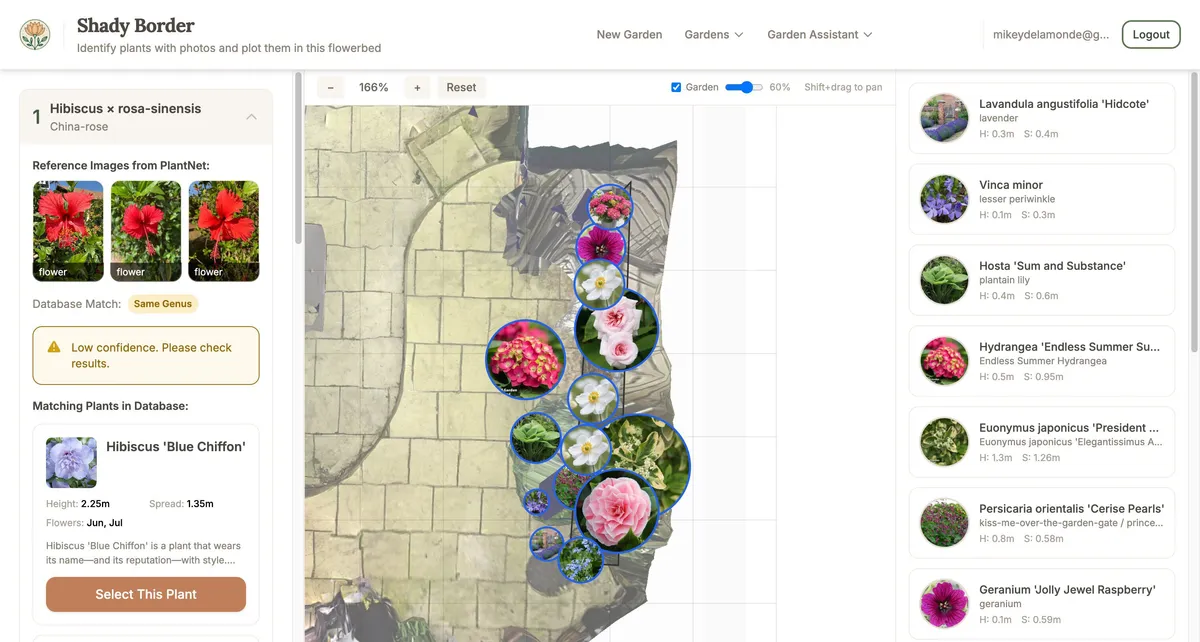
After identification, you’ll see a list of possible matches ranked by how closely they match your photos.
Confidence levels:
| Level | Badge | Meaning |
|---|---|---|
| High Confidence | Green | 70%+ match — very likely correct |
| Medium Confidence | Yellow | 30-70% match — probable but verify |
| Low Confidence | Red | Below 30% — uncertain, may need better photos |
Each result shows:
- Scientific name — the Latin botanical name
- Common name — the everyday English name (if available)
- Reference images — photos from PlantNet showing what this plant looks like
- Organ labels — which part of the plant each reference image shows
Click on any result to expand it and see more details.
Matching to Our Plant Database
When a plant is identified, we check our database to find matching plants that are available to buy from UK nurseries. This means you can find replacements or companions for your existing plants.
Match types:
| Match Type | Badge | What It Means |
|---|---|---|
| Exact Match | Blue | We found this exact plant in our database |
| Similar Match | Purple | We found a very similar variety |
| Related Plants | Yellow | We have similar plants in the same family |
| Not in Database | Grey | This plant isn’t in our database yet |
For plants in our database, you’ll see:
- Plant photo from our catalogue
- Height and spread — how big it grows
- Light requirements — sun/shade preferences
- Flowering months — when it blooms
- Description — brief plant description
Selecting a plant: Click “Select This Plant” to add it to your garden. You’ll then be able to position it in your flowerbed.
If no match is found: The plant may not be available from our partner nurseries. Click “None of these - Search Database Manually” to browse our plant catalogue. You can search by name or browse by characteristics.
Previous: Floor Plan Editor
Next: Placing Plants — Position identified plants on your garden plan and record their details.
Ready to plan your garden?
The Right Plant Right Place app can analyse your specific garden conditions and suggest plants that will thrive in your space.
Get Started Free