Planting Designer
Use the AI-powered Planting Designer to get personalised plant recommendations and plan your dream garden.

Michael Johnson
Founder & Head Gardener
Michael is the founder of Right Plant Right Place and a passionate gardener with several years of experience designing and maintaining gardens.
Expertise
- Garden design
- Plant selection for challenging conditions
- Sustainable gardening practices
- Shade gardening
The Planting Designer is your AI-powered assistant for planning new plantings. It analyses your garden’s conditions—sun exposure, soil type, and existing plants—and suggests plants that will actually thrive in each area. No more guessing, no more dead plants, no more disappointment.
Accessing the Planting Designer: From your garden dashboard, click “Garden Design Assistant” on a completed garden. You need at least one flowerbed or container region defined to use this feature.
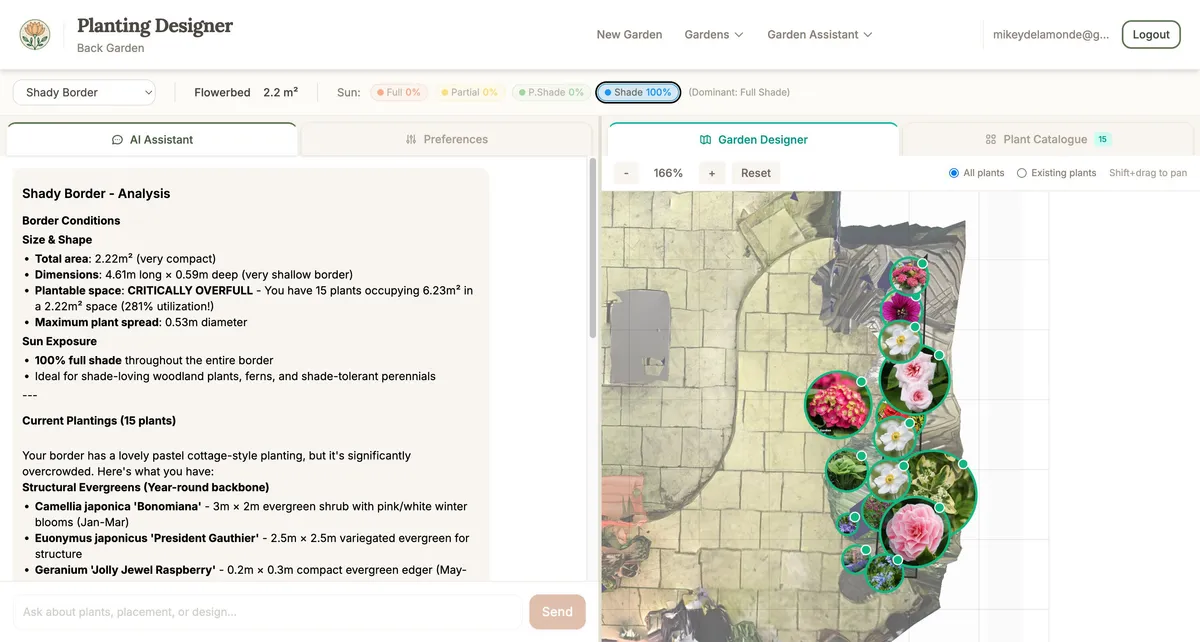
Setting Design Preferences
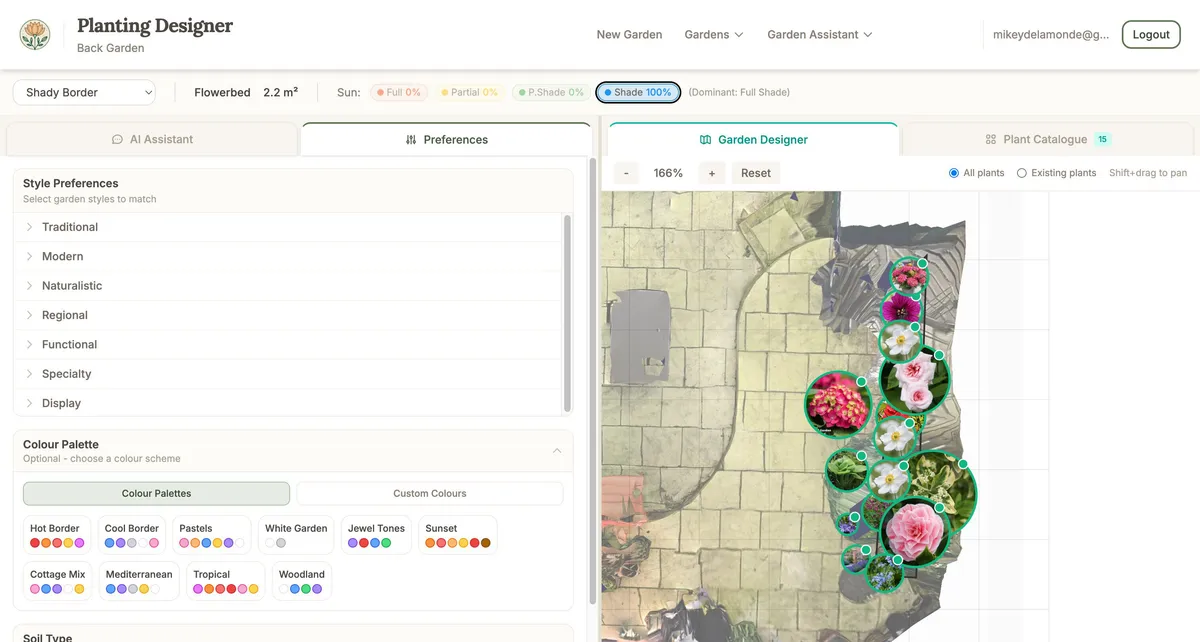
Before getting recommendations, you can set your design preferences to guide the AI’s suggestions. This helps ensure the recommendations match your vision—not just the growing conditions.
Garden styles: Choose from style categories to match your vision:
| Category | Styles Include |
|---|---|
| Traditional | Cottage, Formal, Victorian, Heritage, Romantic |
| Modern | Contemporary, Urban, Dramatic, Gothic |
| Naturalistic | Prairie, Meadow, Wildflower, Wildlife, Informal |
| Regional | Mediterranean, Coastal, Tropical, Exotic, Japanese |
| Functional | Edible, Kitchen Garden, Cutting, Herb Garden, Container |
| Specialty | Woodland, Shade, Bog Garden, Alpine, Rock Garden |
| Display | Mixed Borders, Specimen, Annual Border, White Garden |
Colour palettes: Select a pre-defined palette or choose custom colours:
| Palette | Colours | Description |
|---|---|---|
| Hot Border | Red, Orange, Coral, Yellow, Magenta | Vibrant, warm, energetic |
| Cool Border | Blue, Purple, Silver, White, Pink | Calming, sophisticated |
| Pastels | Soft pinks, blues, yellows, purples | Soft, romantic tones |
| White Garden | White, Silver | Elegant, moonlight garden |
| Jewel Tones | Purple, Red, Blue, Green | Rich, saturated, dramatic |
| Sunset | Orange, Coral, Peach, Yellow, Red | Warm autumn tones |
| Cottage Mix | Pink, Blue, Purple, White, Yellow | Informal, abundant |
| Mediterranean | Blue, Purple, Silver, Yellow | Drought-tolerant |
| Tropical | Magenta, Orange, Coral, Red, Pink | Bold, exotic |
| Woodland | White, Blue, Green, Purple | Shade-friendly, naturalistic |
Soil types: Filter recommendations by your soil conditions (Standard, Clay, Sandy, Chalky, Acidic, Boggy).
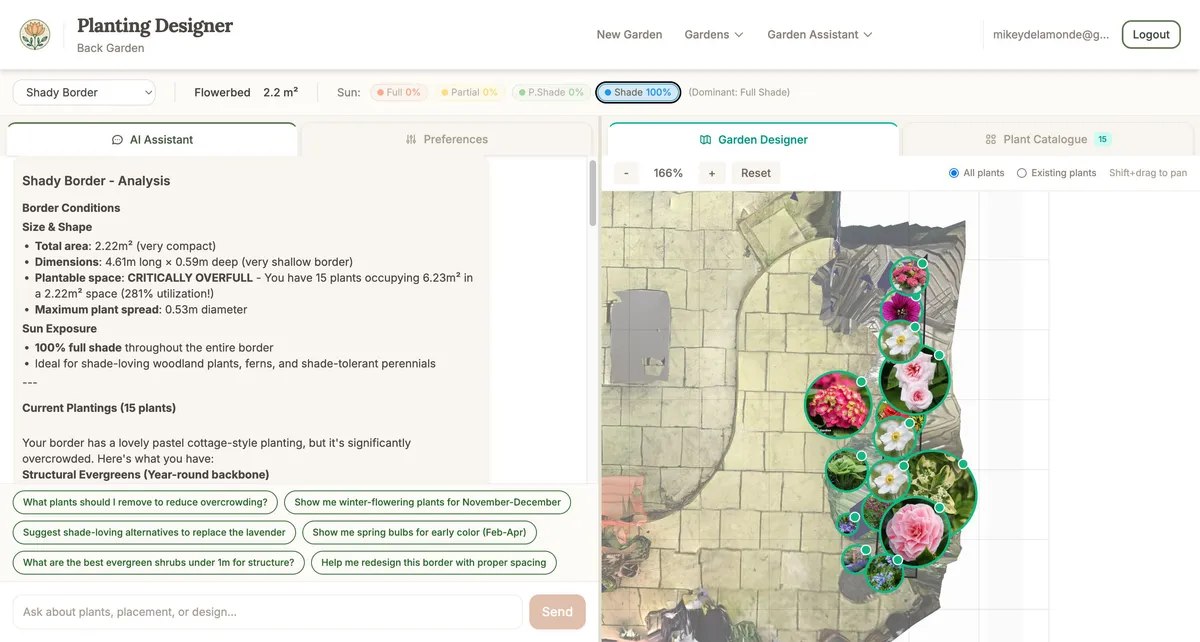
Using the Planting Chat
The Planting Designer features an AI chat assistant that provides personalised plant recommendations. It’s like having a knowledgeable gardening friend who knows your exact conditions.
How it works:
- When you select a region, the AI automatically analyses its conditions
- It considers sun exposure, region size, existing plants, and your preferences
- You can ask questions and have a conversation about your planting plans
Example questions you can ask:
- “What plants would work well in this shady corner?”
- “Suggest some tall plants for the back of this border”
- “I want year-round interest, what do you recommend?”
- “What would complement my existing roses?”
- “Show me plants with blue flowers that bloom in summer”
Suggested prompts: After each response, the AI may suggest follow-up questions as clickable buttons. These help you explore different options without typing.
Getting Planting Recommendations
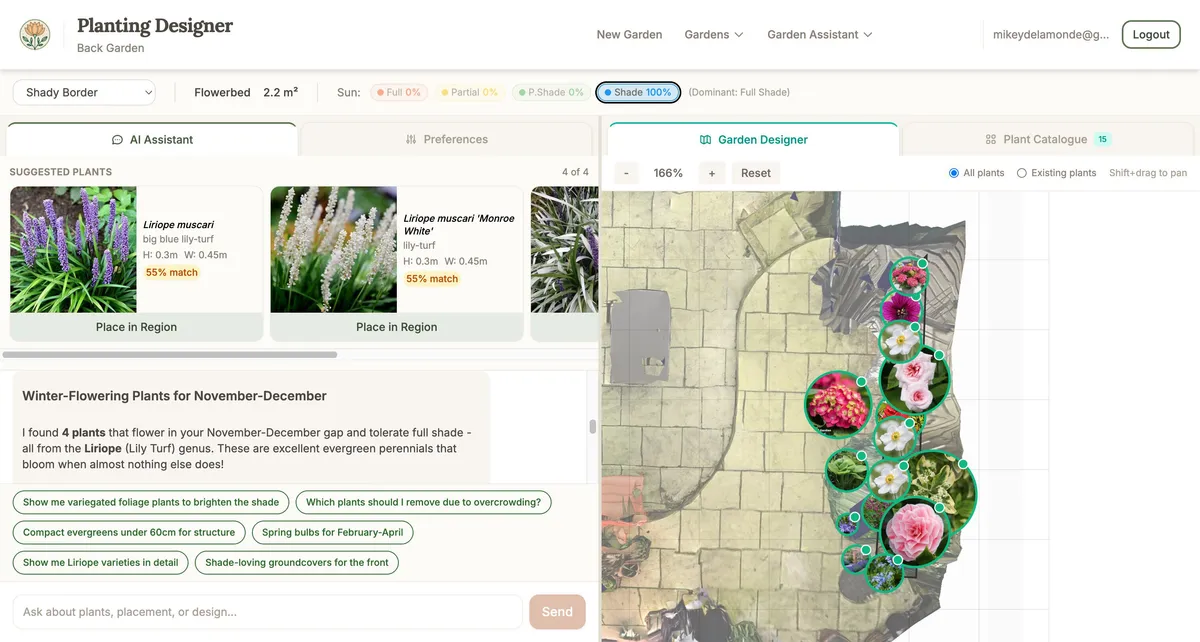
When the AI searches for suitable plants, results appear in a “Suggested Plants” panel above the chat.
Plant cards show:
- Photo — image of the plant
- Name — scientific and common names
- Dimensions — height and spread
- Match score — how well it suits your conditions (shown as a percentage)
- Green badge (70%+): Excellent match
- Yellow badge (50-69%): Good match
- Grey badge (below 50%): Possible but not ideal
Loading more results: If there are more matching plants, click “Load More” to see additional suggestions.
Placing Suggested Plants
When you find a plant you like, you can add it to your garden plan.
To place a plant:
- Click “Place in Region” on any plant card
- The plant is automatically positioned in your region
- A confirmation message appears in the chat
- You can drag the plant to adjust its exact position
- Use the resize handle to adjust its spread
Getting more information: Click on a plant card or select “Find out more…” to ask the AI for detailed information about that plant, including growing conditions and care requirements, companion planting suggestions, and best placement within your border.
Viewing and Managing Planned Plants
Plants you add through the designer appear as “planned plantings” on your region diagram. They’re styled differently from existing plants, so you can easily see what you have versus what you’re planning to add.
Planned plants show:
- A circular marker indicating the plant’s spread
- The plant image in the centre
- Different styling from existing plants
To manage planned plants:
- Click to select and view details in the sidebar
- Drag to reposition
- Resize using the handle on the edge
- Delete using the trash icon
Converting planned to existing: When you purchase and plant something from your plan, click “I have this Plant” to convert it from a planned planting to an existing planting. This moves it to your permanent garden record.
Visualising Your Design
Once you’ve placed plants in your region, you can generate an AI visualisation to see how your planting scheme will look in your actual garden. This uses your 3D garden model to create a realistic preview of your design.
How it works:
- Open the Visualiser tab in the right panel of the Planting Designer
- Click “Generate Visualisation” to create a preview
- Each visualisation uses one credit
Visualisation credits:
- Garden Planner subscribers receive 1 free credit when they first subscribe
- Additional credits can be purchased anytime in packs of 1 or 5
- Credits are managed from your Account page
This is a premium feature — you’ll need an active Garden Planner subscription and at least one visualisation credit to generate a visualisation.
Buying Plants from Suppliers
Plants in our database include links to UK nurseries where you can purchase them. We’ve done the hard work of finding reliable suppliers—you just need to click through and buy.
Finding purchase links:
- Select a planned plant by clicking on it
- In the plant details panel, look for nursery website links
- Each link shows the nursery name (e.g., “crocus.co.uk”, “farmergracy.co.uk”)
- Click any link to open the plant’s page on that nursery’s website
What you’ll find:
- Direct links to the specific plant page
- Current pricing and availability
- Options to add to your shopping basket on the nursery site
Multiple suppliers: Many plants are available from several nurseries, giving you options to compare prices, check availability, and choose your preferred supplier.
Note: Prices and availability are managed by each nursery and may change. The links take you directly to the supplier’s website to complete your purchase.
Previous: Placing Plants
You’ve completed the Getting Started guides! You now have everything you need to plan a beautiful garden with confidence. Remember: the right plant in the right place is a happy plant—and a happier gardener.
Ready to plan your garden?
The Right Plant Right Place app can analyse your specific garden conditions and suggest plants that will thrive in your space.
Get Started Free