Creating Your Account
Get started with Right Plant Right Place by creating your account and exploring your garden dashboard.

Michael Johnson
Founder & Head Gardener
Michael is the founder of Right Plant Right Place and a passionate gardener with several years of experience designing and maintaining gardens.
Expertise
- Garden design
- Plant selection for challenging conditions
- Sustainable gardening practices
- Shade gardening
Welcome to Right Plant Right Place! If you’ve ever felt overwhelmed by garden planning—killing plants without knowing why, wandering through garden centres feeling lost, or staring at a problem spot with no idea where to start—you’re in the right place. We’re here to help you feel confident about choosing plants that will actually thrive in your garden.
Let’s get you set up.
Creating Your Account
To use Right Plant Right Place, you’ll need to create a free account. There are two ways to sign up.
Option 1: Email and Password
- Click “Create one here” on the sign-in page, or navigate to the registration page
- Enter your details:
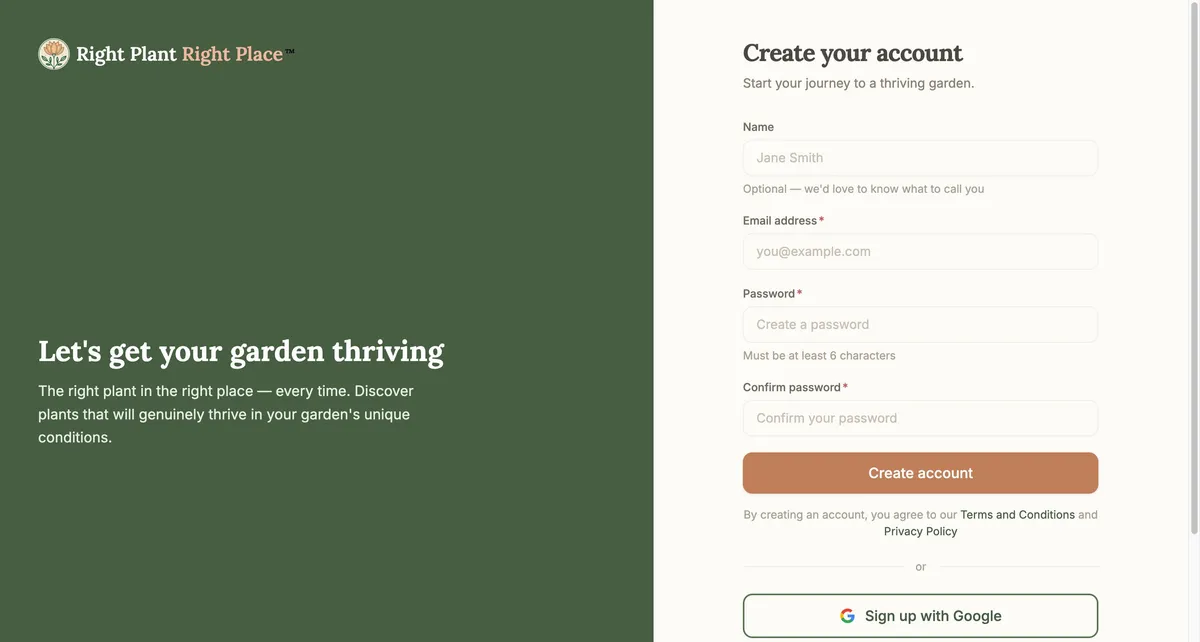
- Name (optional) — how you’d like us to address you
- Email address (required)
- Password (required) — must be at least 6 characters
- Confirm password (required)
- Click “Create account”
Option 2: Sign up with Google
- Click “Sign up with Google”
- Select your Google account
- You’ll be automatically signed in
By creating an account, you agree to our Terms and Conditions and Privacy Policy.
Already have an account? Click “Sign in” and enter your email and password, or use “Continue with Google”.
Forgot your password? On the sign-in page, click “Forgot your password?” to receive a reset link via email.
Your Garden Dashboard
After signing in, you’ll land on the My Gardens dashboard. This is your home base for managing all your garden projects.
When you have no gardens: You’ll see a helpful guide image explaining how Right Plant Right Place works, along with a “Create Your First Garden” button. Don’t worry—we’ll walk you through everything.
When you have gardens: Your gardens appear as cards in a grid. Each card shows a thumbnail preview, the garden name you gave it, and a status badge showing where you’re up to:
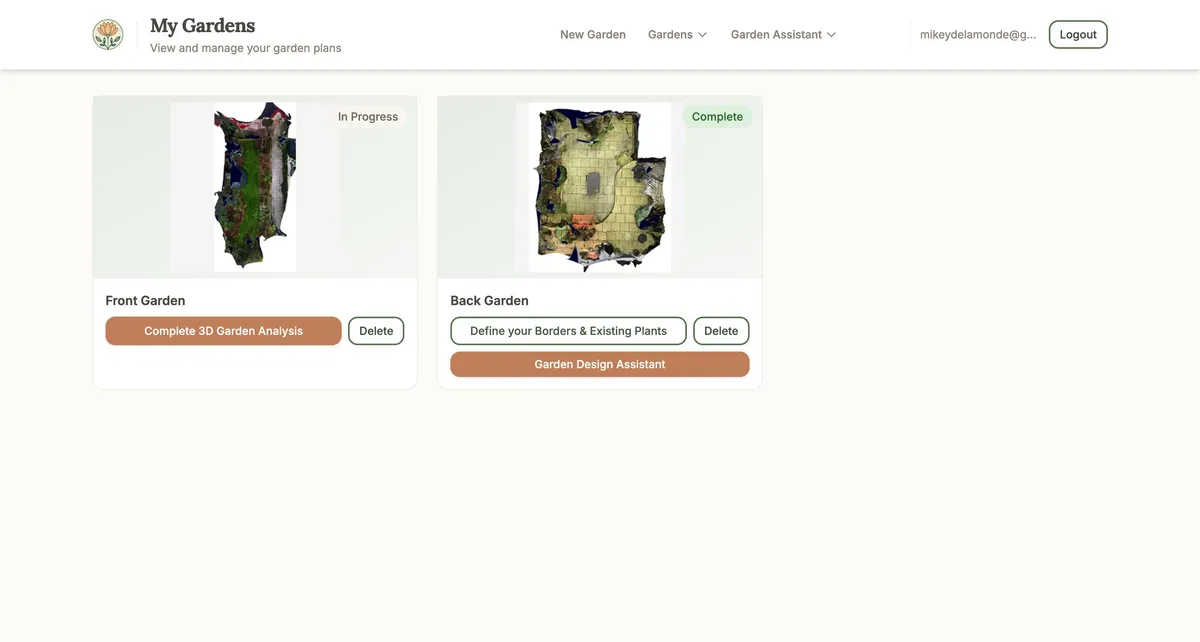
- Processing — your video is being converted to a 3D model
- Failed — something went wrong during processing
- Ready to Configure — your 3D model is ready for the calibration wizard
- In Progress — you’ve started but not completed the calibration wizard
- Complete — your garden is fully set up and ready to use
Available actions for each garden:
- Start Setup / Complete 3D Garden Analysis — continue the calibration wizard
- Define your Borders & Existing Plants — draw flowerbeds and place plants (available after wizard completion)
- Garden Design Assistant — get AI-powered planting recommendations (requires at least one flowerbed defined)
- Delete — remove the garden permanently
A note about mobile vs desktop: Some features like the calibration wizard and floor plan editor work best on a desktop or tablet. On mobile, you’ll see a helpful tip to continue on a larger screen for these tasks. However, you can upload videos and identify plants on mobile—so you can walk around your garden with your phone and switch to your computer for the detailed work.
Next: Creating a Garden — Learn how to record and upload a video of your garden to create your 3D model.
Ready to plan your garden?
The Right Plant Right Place app can analyse your specific garden conditions and suggest plants that will thrive in your space.
Get Started Free