Creating a Garden
Learn how to record and upload a video walkthrough of your garden to create a 3D model for sun analysis.

Michael Johnson
Founder & Head Gardener
Michael is the founder of Right Plant Right Place and a passionate gardener with several years of experience designing and maintaining gardens.
Expertise
- Garden design
- Plant selection for challenging conditions
- Sustainable gardening practices
- Shade gardening
To get personalised planting recommendations, Right Plant Right Place needs to understand your garden’s unique conditions—especially how sunlight reaches different areas throughout the day. We do this by turning a video walkthrough of your garden into a 3D model that we can analyse.
Don’t worry—it’s much simpler than it sounds.
Recording Your Garden Video
The better your video, the better your 3D model will be. Here’s how to get the best results.
The basic approach:
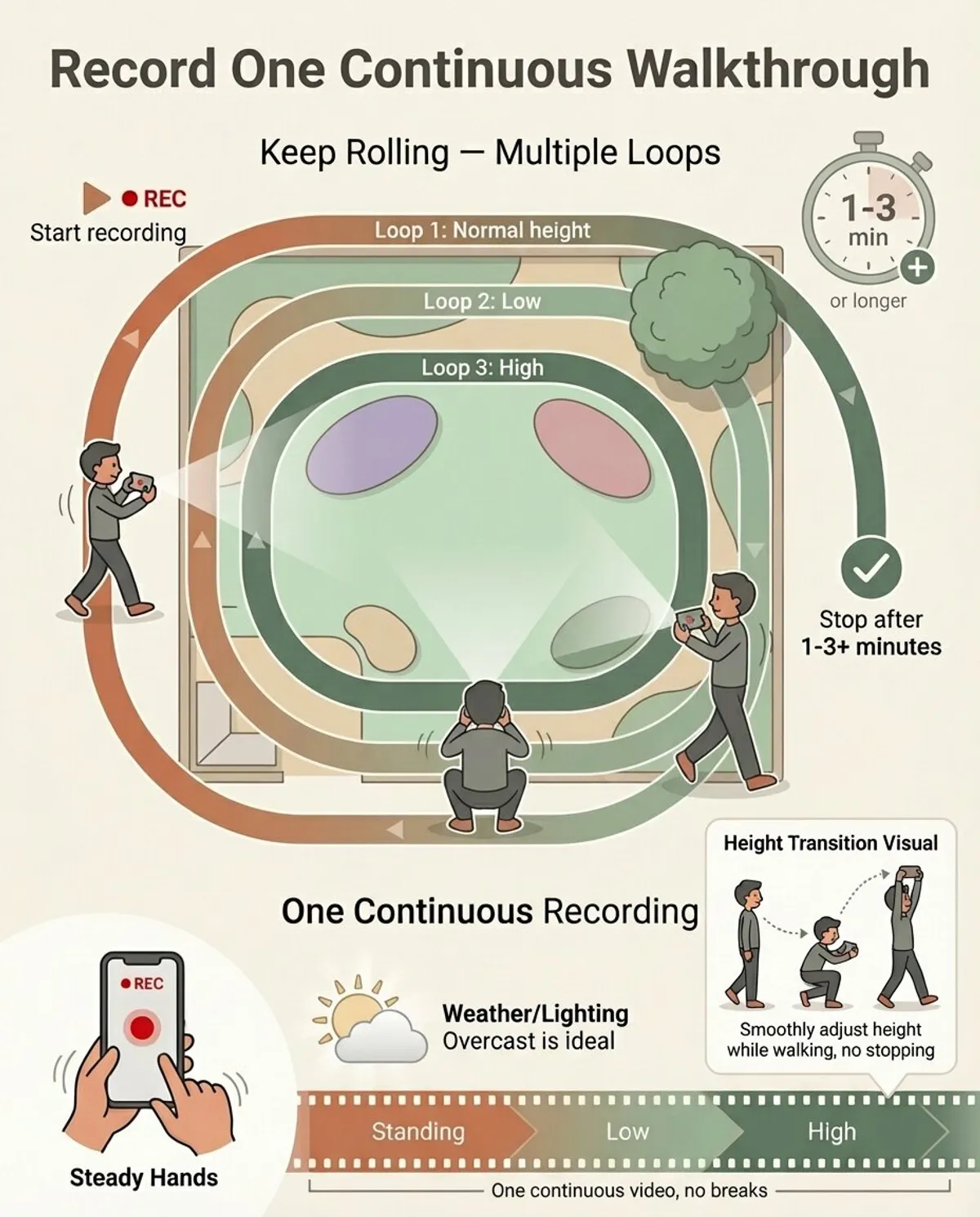
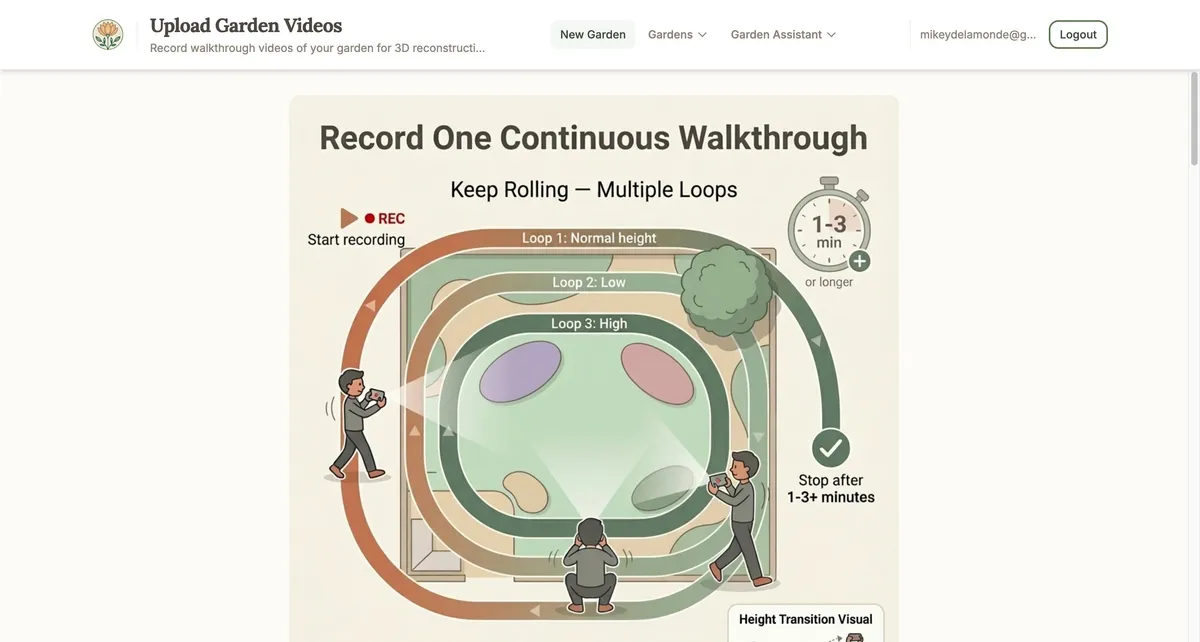
- One continuous walkthrough — walk slowly around your entire garden in one uninterrupted recording
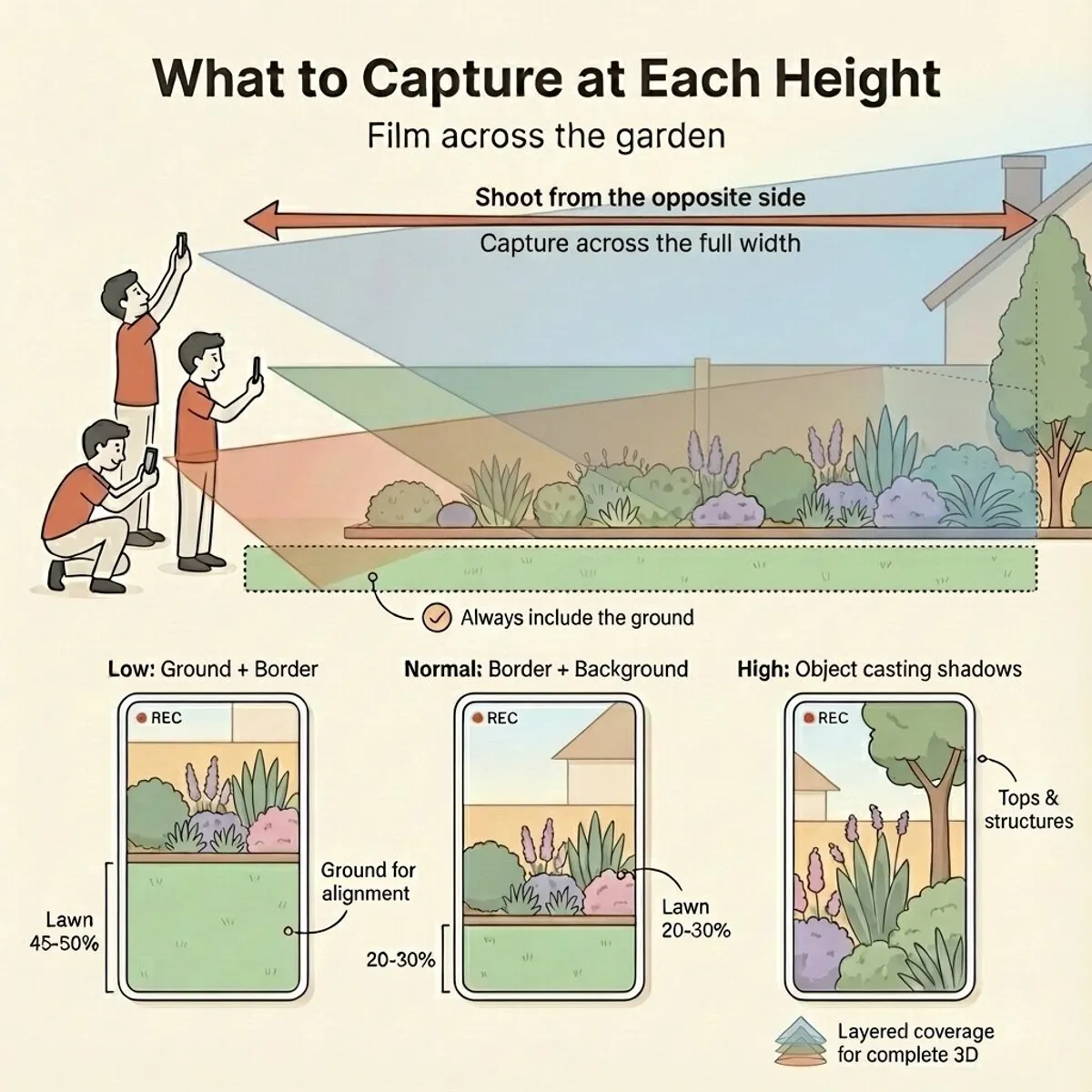
- Layer your coverage — walk around the perimeter multiple times at different distances to capture depth
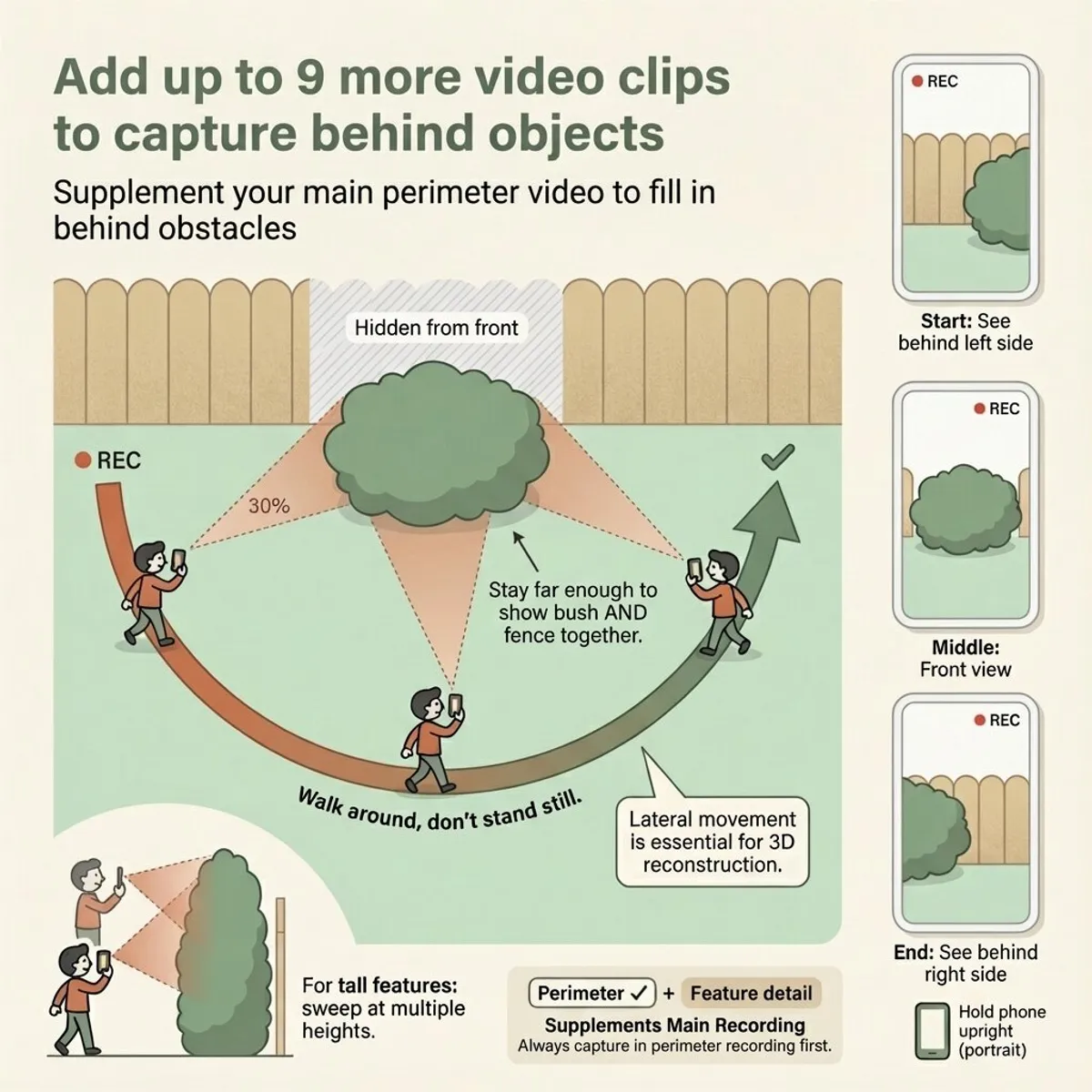
- Capture behind obstacles — record additional detail videos for areas obscured by trees, sheds, or other features
Recording tips:
- Keep the camera steady and move slowly
- Avoid sudden movements or fast panning
- Record in good natural lighting (overcast days actually work well—they reduce harsh shadows)
- Make sure the entire area you want to model is visible
You don’t need professional equipment—your smartphone camera works perfectly.
Video Tutorial
Watch our step-by-step guide to recording your garden walkthrough:
Uploading Your Videos
Once you’ve recorded your garden, here’s how to upload:
-
Name your garden — give it a memorable name like “Back Garden” or “Front Yard”
-
Add your videos — you can upload 1-10 videos:
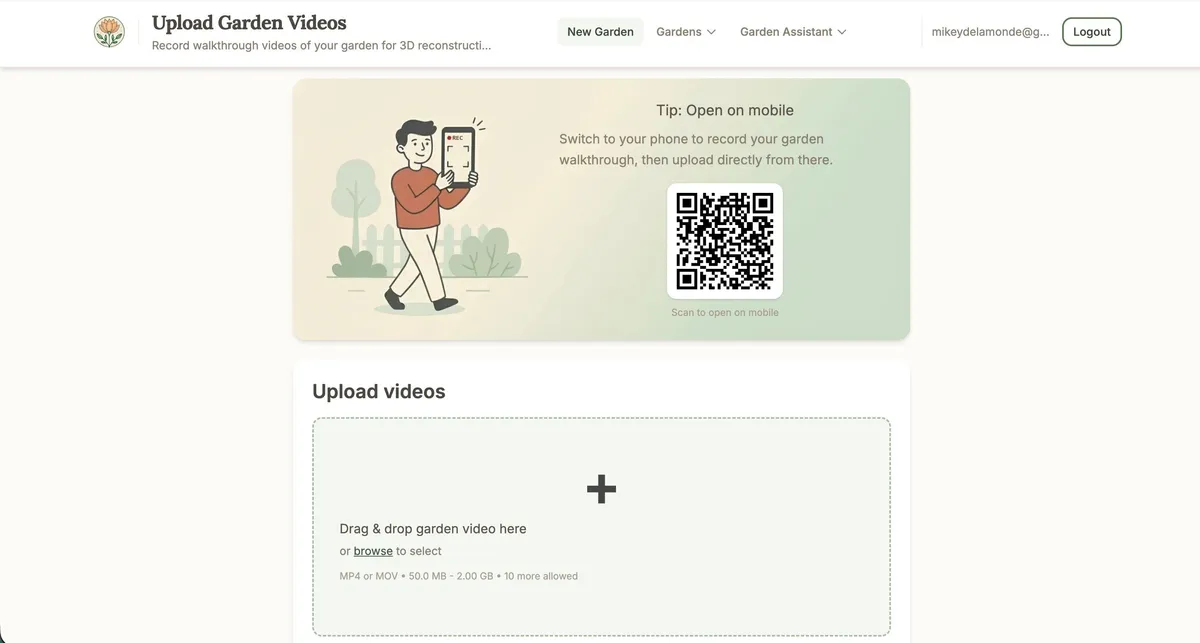
- Drag and drop videos onto the upload area, or tap/click to browse
- Accepted formats: MP4 or MOV
- Maximum file size: 2GB per video
- The largest video is automatically assigned as your “Garden perimeter walkthrough”
- You need at least one perimeter video of 100MB or larger
- Smaller videos can be labelled as “Feature detail” for specific areas
-
Video labels:
- Garden perimeter walkthrough — your main video covering the whole garden
- Feature detail — additional videos for specific features (trees, flower beds, sheds)
-
Start the upload — click “Upload” to begin. You’ll see progress for each video.
Tip for desktop users: If you’re on a computer, you’ll see a QR code you can scan with your phone. This lets you record your garden video on mobile and upload directly from there—no need to transfer files between devices.
Understanding 3D Reconstruction
After uploading, your videos are processed to create a 3D model. This happens automatically in the cloud, so you can close the page and come back later.
What to expect:
- Processing typically takes 30 minutes to 2 hours depending on video length
- You can safely close the page and return later—processing continues in the background
- A progress bar shows the current stage and percentage complete
- For multiple videos, you’ll see individual progress for each video during extraction
If something goes wrong:
- If processing fails, you’ll see an error message explaining what happened
- You can retry with the existing uploaded videos
- Or upload new videos if the originals had issues
When processing completes:
- On desktop/tablet: you’ll be automatically redirected to the Garden Calibration Wizard
- On mobile: you’ll return to your dashboard (the wizard works best on larger screens)
Previous: Creating Your Account
Next: Garden Calibration Wizard — Set up your 3D model so we can accurately calculate sun exposure.
Ready to plan your garden?
The Right Plant Right Place app can analyse your specific garden conditions and suggest plants that will thrive in your space.
Get Started Free